
Toyota Camry (XV70): Settings display
◆ Changing settings
Use the meter control switches on the steering wheel to change settings.
1. Press  or
or
 to select
 .
.
2. Operate the switches to select a desired item.
3. Press or press and hold  .
.
The available settings will differ depending on if
 is pressed or
pressed and held. Follow the instructions on the display.
is pressed or
pressed and held. Follow the instructions on the display.
◆ Setting items
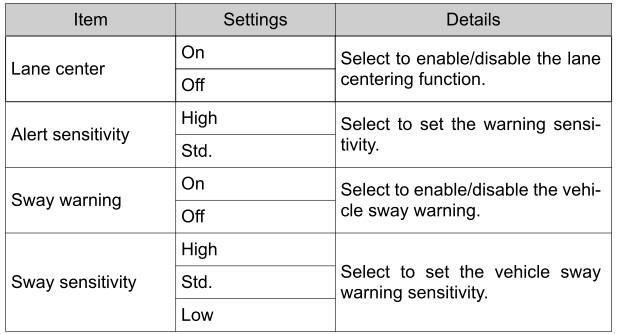
■  LTA (Lane Tracing Assist)
Press and hold to change the
settings of the following items:
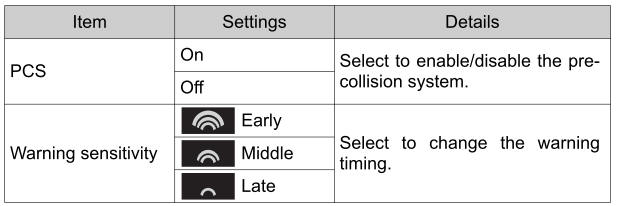
■  PCS (Pre-Collision System)
Press and hold to change the
settings of the following items:
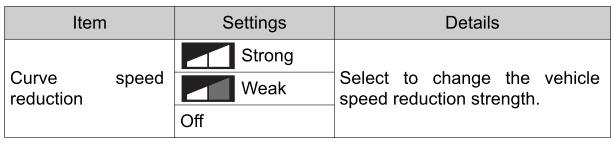
■  DRCC (Dynamic Radar Cruise
Control)
DRCC (Dynamic Radar Cruise
Control)
Press and hold to change the
settings of the following item:
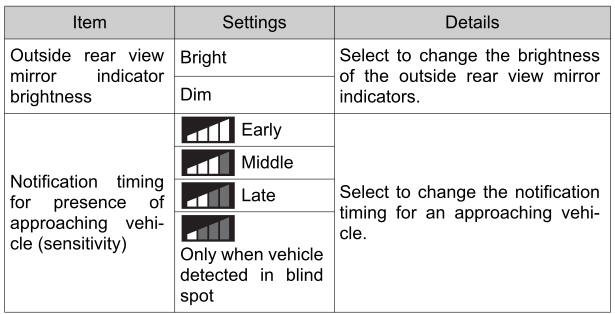
■  BSM (Blind Spot Monitor) (if
equipped)
BSM (Blind Spot Monitor) (if
equipped)
Press to enable/disable the Blind
Spot Monitor function.

Press and hold to change the
settings of the following item:
■  RCTA (Rear Cross Traffic
Alert) (if equipped)
RCTA (Rear Cross Traffic
Alert) (if equipped)
Press to enable/disable the Rear
Cross Traffic Alert function.

Press and hold to change the
settings of the following item:
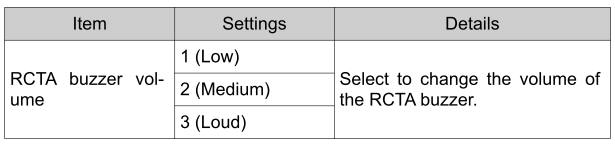
■ RCD (Rear Camera Detection) function (if equipped)
Press to enable/disable the rear
camera detection function.

■  PKSB (Parking Support
Brake) (if equipped)
PKSB (Parking Support
Brake) (if equipped)
Press to enable/disable the
Parking Support Brake.

■  Intuitive parking assist
(if equipped)
Intuitive parking assist
(if equipped)
Press to enable/disable the
Intuitive parking assist.

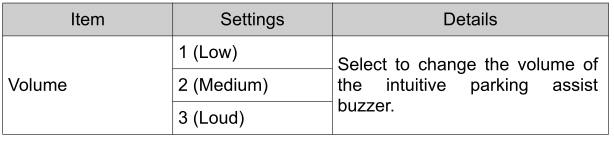
Press and hold to change the
settings of the following item:
■  HUD (Head-up display) (if
equipped)
HUD (Head-up display) (if
equipped)
Press to enable/disable the
head-up display.

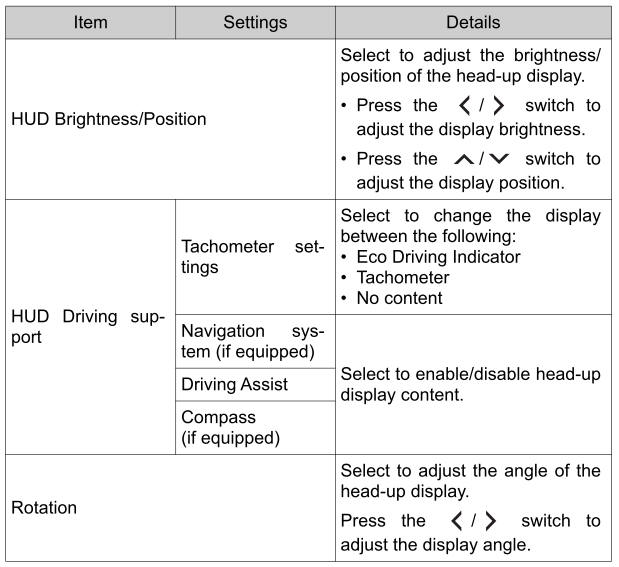
Press and hold to change the
settings of the following items:
■  RSA (Road Sign Assist) (if
equipped)
RSA (Road Sign Assist) (if
equipped)
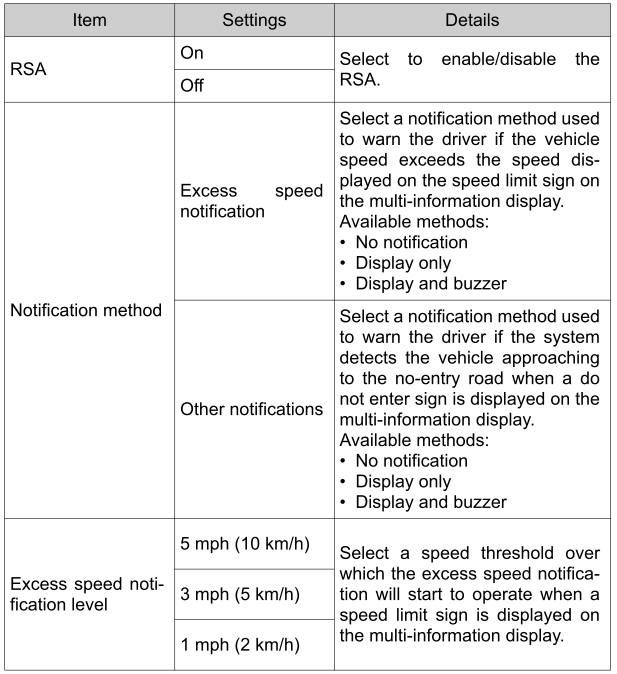
Press and hold to change the
settings of the following items:
■  Vehicle settings
Press and hold to change the
settings of the following items:
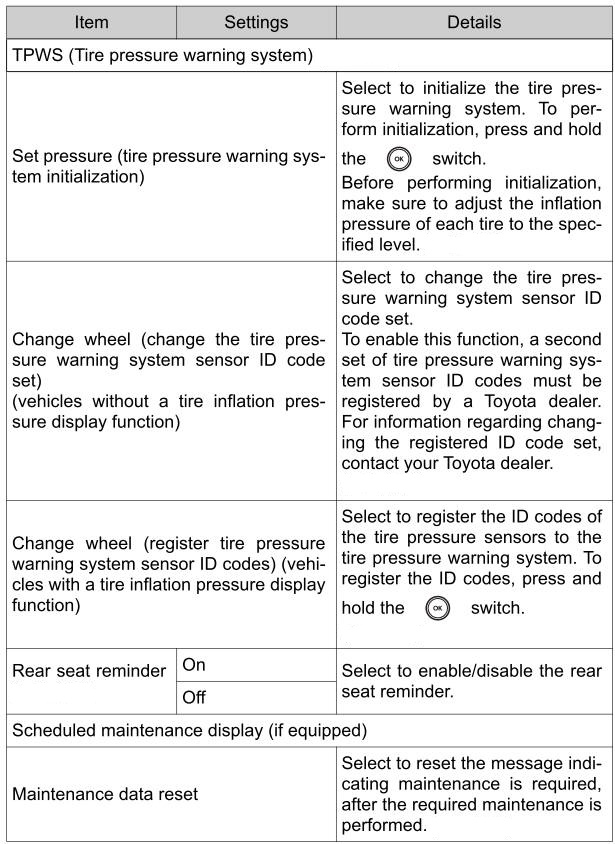
■  Meter settings
Press and hold to change the
settings of the following items:
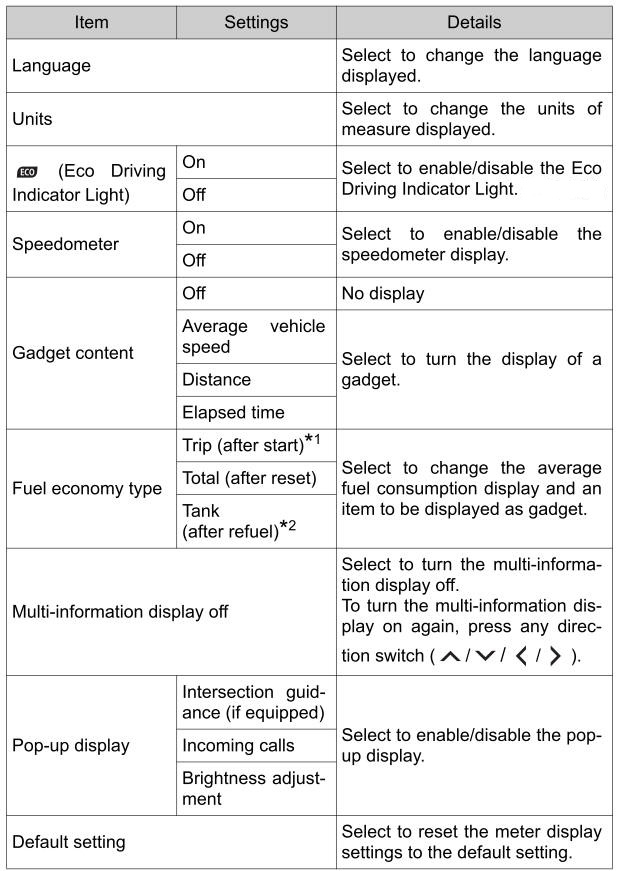
*1: Selecting this item will only change the gadget.
*2: Selecting this item will turn the display of the gadget off.
Odometer/trip meter
■ Odometer
Displays the total distance the vehicle has been driven.
■ Trip meter A/trip meter B
Displays the distance the vehicle has been driven since the meter was last reset. Trip meters A and B can be used to record and display different distances independently.
To reset, display the desired trip meter and press and hold the "ODO/ TRIP" switch.
READ NEXT:
 Suggestion function
Displays suggestions to the driver in the following situations. To select
a response to a displayed suggestion, use the meter control switches.
The suggestion function can be turned on/off.
■ S
Summary of functions
The head-up display is linked to the meters and navigation system (if
equipped) and projects a variety of information in front of the driver,
such as the current vehicle speed.
Driving assist
SEE MORE:
Removal
REMOVAL CAUTION / NOTICE / HINT
The necessary procedures (adjustment, calibration, initialization, or registration) that must be performed after parts are removed and installed, or replaced during rear crankshaft oil seal removal/installation are shown below. Necessary Procedure After Parts Remove
Dtc Check / Clear
DTC CHECK / CLEAR CHECK FOR DTC (a) Check for DTCs (Test Failed / Pending / Confirmed). Chassis > Front Recognition Camera > Trouble Codes
Techstream Display Description
Test Failed Shows the malfunction judgment results during the current trip.
Pending Shows the ma
